How-to
Install Linux Mint on a Windows Computer
Microsoft stopped updating Windows 10 on October 14, 2025, and Microsoft's engineers left many working computers off the list for Windows 11. Linux Mint installs on those computers and keeps them on security updates. This guide takes you from Windows to Linux Mint in seven steps,1 and one computer takes about an hour.
The install erases Windows and every file on the disk, so in step 1 you copy your files to another drive first.
What you need
- The Windows computer you want to move to Linux Mint, plugged into power.
- A USB stick of 8 GB or more. Writing Linux Mint to it erases whatever it holds.
- A second USB drive or an external disk for a copy of your files.
- Your network: a cable, or the Wi-Fi name and password.
- Windows, to make the USB stick in step 3. Use this computer before you start, or any other Windows computer.
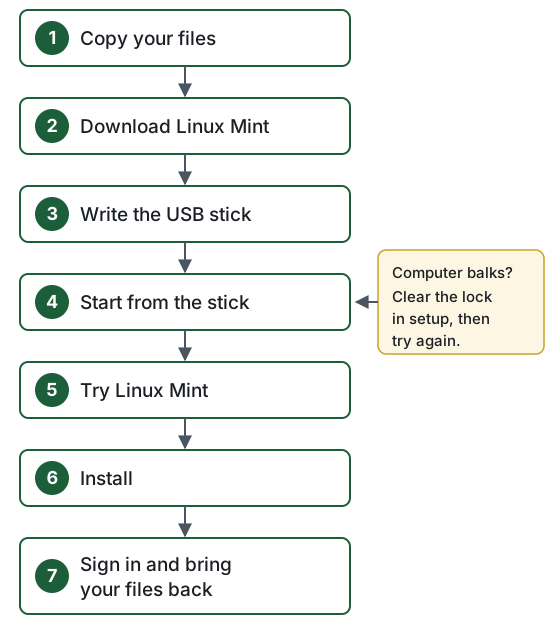
1. Copy your files
In Windows, open each folder you use: Documents, Pictures, Desktop, Downloads, Music and Videos. Copy them to the second drive. Then open a few files from the drive to prove the copy worked, and set the drive aside until step 7.
2. Download Linux Mint
Go to linuxmint.com and download Linux Mint 22.3, the Cinnamon Edition. The Linux Mint team writes, "If you are unsure which desktop to choose start with the Cinnamon edition." The download arrives as one file of about 3.1 GB, an ISO image that holds the whole operating system.
3. Write the USB stick
A plain copy of the ISO file leaves the stick unable to start a computer. A small program writes it the right way.
- Download Rufus from rufus.ie and open it.
- Under Device, pick the USB stick. Compare its size and name with the stick in your hand. Rufus erases whatever drive you pick, and the check keeps it away from your backup drive.
- Click SELECT and choose the Linux Mint ISO file.
- Click START. Before Rufus writes the stick, it asks
three questions and gives one warning. Rufus 4.15, the version current
in October 2026, shows them in this order:
- ISOHybrid image detected. Leave Write in ISO Image mode (Recommended) selected and click OK.
- Download required, about a file named Grub. Click Yes. Rufus downloads a small file it needs from rufus.ie, so keep the computer connected to the Internet.
- Download required, about Syslinux. Click Yes again. If you click No here, Rufus stops the copy.
- WARNING: ALL DATA ON DEVICE ... WILL BE DESTROYED. Click OK. Rufus erases the stick you picked in step 2.
- Wait for the green bar to read READY, then close Rufus.
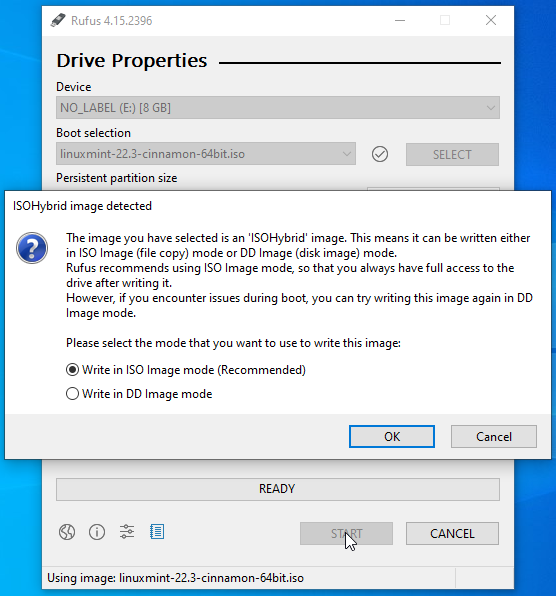
Linux Mint's own guide shows the same job with a program called Etcher, if you prefer it.
4. Start the computer from the stick
Before you leave Windows, take care of two settings.
- BitLocker. Sign in at account.microsoft.com/devices, find this computer, and write down its recovery key if Microsoft lists one. If Control Panel shows BitLocker Drive Encryption, open it and click Suspend protection. You can read why in the fourth lock below.
- Secure Boot. If Microsoft's engineers left this computer off the list for Windows 11, plan to turn Secure Boot off in setup before you start from the stick. You can read why and how in the second lock below.
Plug the stick into the computer and restart it. As the maker's logo appears, tap the boot-menu key about once a second until a small menu opens. Choose the USB stick. The menu names it by its brand, sometimes after the word UEFI.
| Maker | Boot menu | Setup screen |
|---|---|---|
| Dell | F12 | F2 |
| HP laptops | Esc, then F9 | Esc, then F10 |
| Lenovo ThinkPad and ThinkCentre | F12 | F1 |
| Lenovo IdeaPad, Yoga and Legion | The Novo button, then Boot Menu | F2, or the Novo button |
| Acer | F12, once you turn on F12 Boot Menu in setup | F2 |
| ASUS laptops | Esc, on many models | Hold F2 as you press power |
Most computers print the keys on the screen for a moment as they start. If the logo flashes past, you can open the setup screen from Windows: in Windows 10, go to Settings, Update & Security, Recovery, and under Advanced startup click Restart now. Then choose Troubleshoot, Advanced options, UEFI Firmware Settings and Restart.
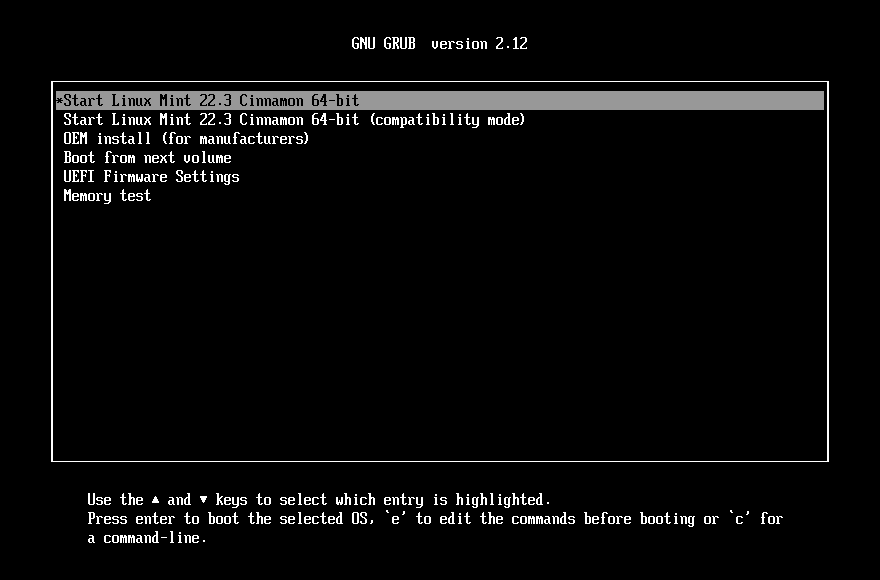
The stick shows a short menu with Start Linux Mint 22.3 Cinnamon 64-bit at the top. Press Enter, and a minute or two later the Linux Mint desktop opens.
If the computer balks: the four locks
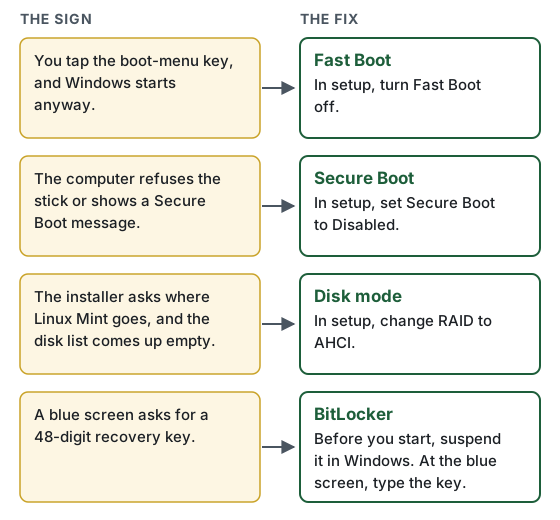
Four settings can block the stick. Each one shows itself with a sign, and you fix the one that shows. You change three of them in the setup screen, the menu the maker builds into the computer; the setup key in the table opens it. Change the one setting, save, restart and try the boot menu again.
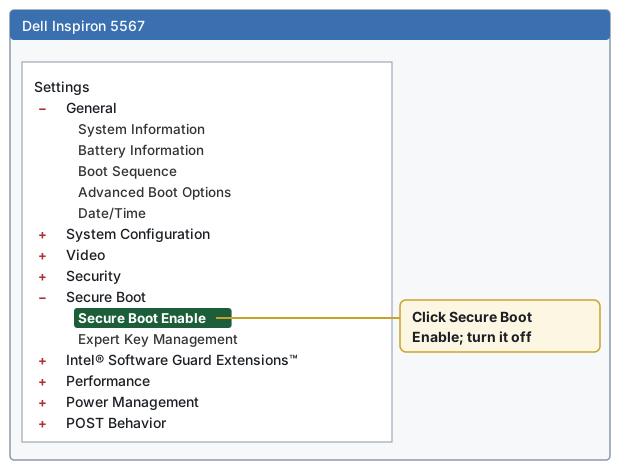
On a Dell like our Inspiron 5567, setup opens as a list of headings on the left. Click the + beside a heading to open it, and click a setting to show its choices on the right. When you finish, click Exit at the bottom right.
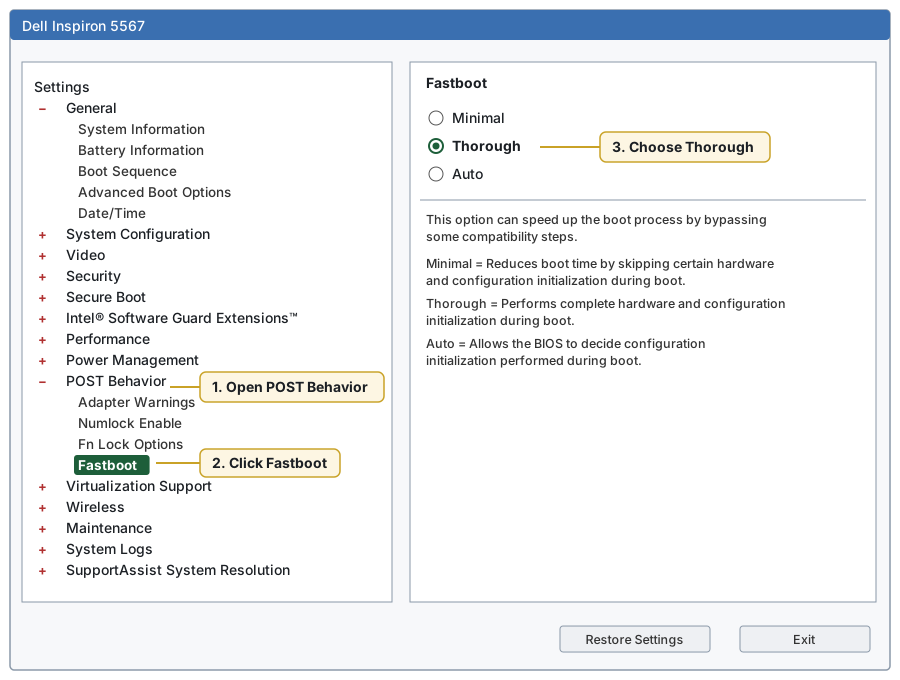
Fast Boot. You tap the boot-menu key, and Windows starts anyway, because the computer starts faster than your keystroke reaches it. In setup, find Fast Boot and turn it off. Dell names it Fastboot, under POST Behavior, with three choices: pick Thorough, which performs every start-up check.
Secure Boot. The computer refuses the stick, or shows a message about a Secure Boot violation. The Linux Mint team prints the fix in its guide: in setup, set Secure Boot to Disabled. On the Dell, open Secure Boot and click Secure Boot Enable. On a computer Microsoft's engineers left off the Windows 11 list, turn it off before you start, as step 4 says, even if the stick starts with it on. Microsoft's 2011 certificate for Linux expired in June 2026, and Canonical's engineers, who sign the start-up program Linux Mint uses, sign their updates with Microsoft's 2023 certificate. A computer whose setup holds the 2011 certificates and no later ones, like the Dell Inspiron 5567 in our lab, can refuse those updates and stop starting.
Disk mode. You find this lock inside the installer: it asks where Linux Mint goes, and the list of disks comes up empty. The maker set the disk to a mode called RAID, which Windows reads and the installer cannot. In setup, find the disk setting, which Dell names SATA Operation, and change it from RAID to AHCI.
BitLocker. Windows may lock its disk with BitLocker, and a change in setup can make it ask for a 48-digit recovery key on a blue screen. When you suspend BitLocker before you start, as step 4 shows, you prevent it. If the blue screen comes anyway, sign in at account.microsoft.com/devices from another computer or a phone, find this computer, and type its recovery key. The install erases BitLocker along with Windows.
5. Try Linux Mint
The stick opens a full Linux Mint desktop and leaves your disk alone. The Linux Mint team calls this the live session, and changes you make in it "are not written to the USB stick (or DVD) and they do not impact the system installed by the installer." Take a few minutes here. Connect to your network, play a sound, and open a web page, so you see how Linux Mint works with your computer before you erase Windows.
6. Install
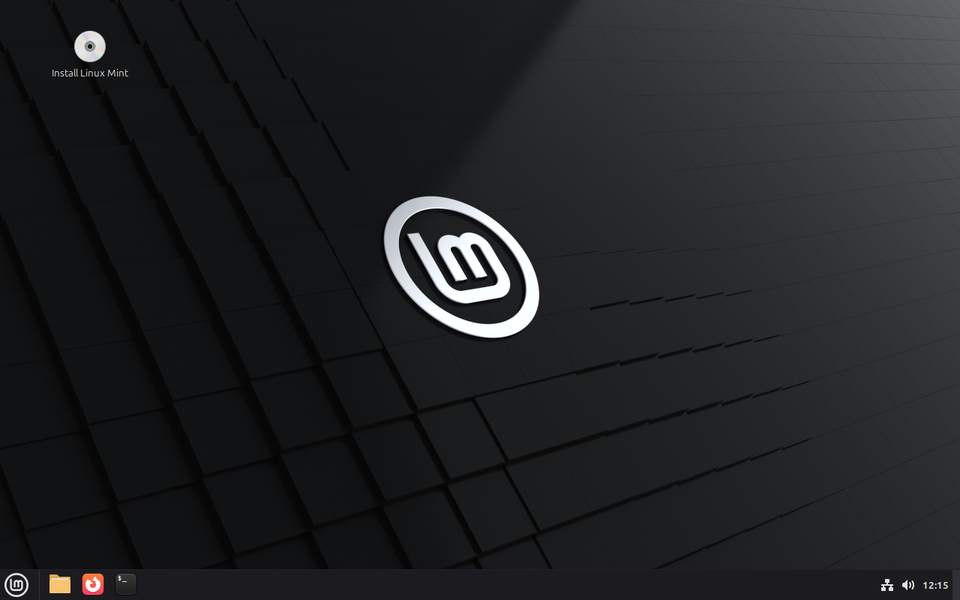
Double-click Install Linux Mint on the desktop and answer the screens in order. Click Continue after each one.
- Welcome. Choose your language.
- Keyboard layout. Choose the layout printed on your keys.
- Wireless. On Wi-Fi, the installer asks for your network and its password. A cable skips this screen.
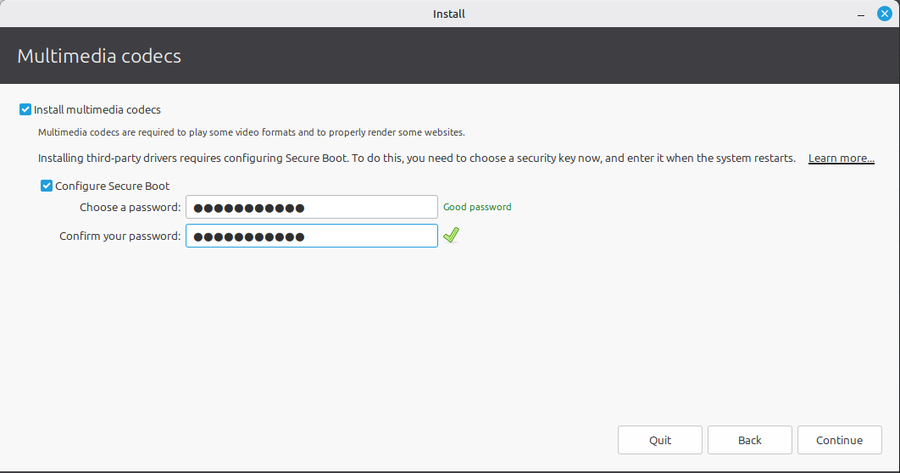
- Multimedia codecs. Tick Install multimedia codecs, so the computer plays common audio and video files. If you left Secure Boot on, the screen also asks you to choose a password for Secure Boot. Pick one and write it down, because the computer asks for it once, on the first restart.
- Installation type. Choose Erase disk and install Linux Mint. The Linux Mint team writes the rule for it: "If Linux Mint is the only operating system you want to run on this computer and all data can be lost on the hard drive." Click Install Now, and in the box that asks to write the changes to disks, click Continue. With that click, the installer erases Windows and gives Linux Mint the whole disk.
- Where are you? Click your place on the map, or type a nearby city.
- Who are you? Type your name. The installer fills in a computer name and a username from it, and you can keep both or change them to lowercase letters with no spaces or punctuation. Then type a strong password twice.
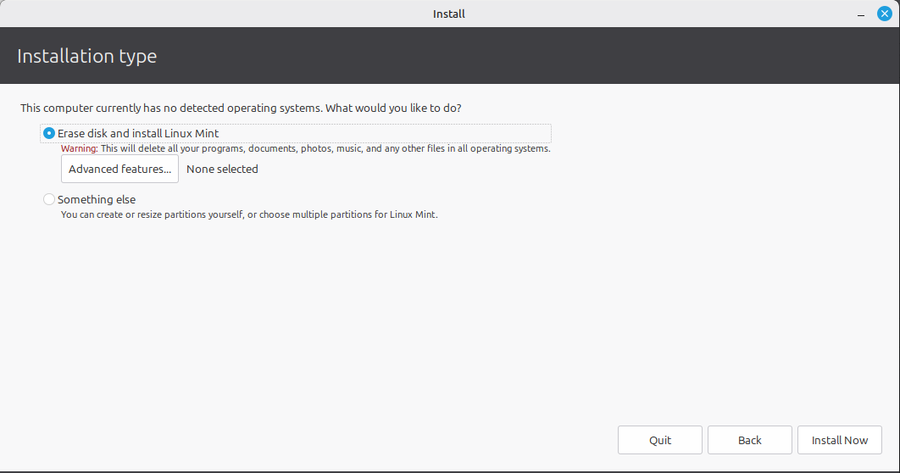
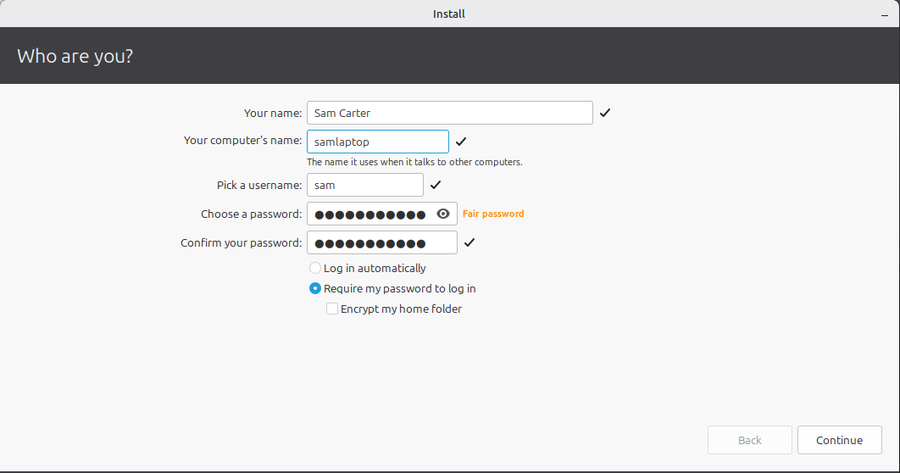
The installer copies Linux Mint to the disk while a slideshow runs; in our lab it took about eight minutes. When it finishes, click Restart Now. Pull out the USB stick when the screen asks, and press Enter.
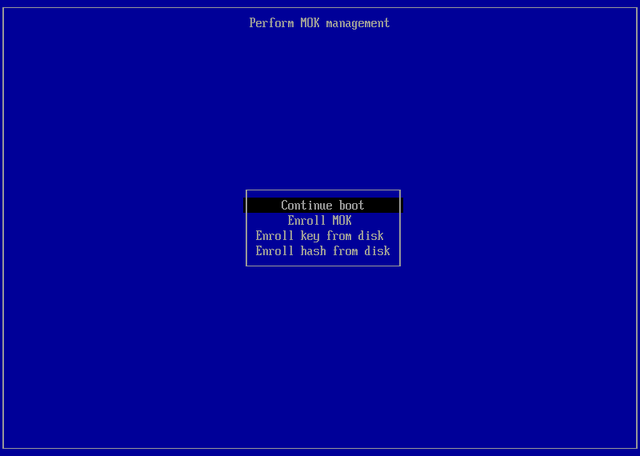
If you left Secure Boot on, a blue screen titled Perform MOK management comes up once, before Linux Mint starts. It lets the computer accept the key Linux Mint uses for its drivers. Choose Enroll MOK, Continue and Yes, type the Secure Boot password from the codecs screen, and choose Reboot. With Secure Boot off, you skip this screen.
7. Sign in and bring your files back
The computer starts Linux Mint from its own disk and shows the login screen with your name on it. Sign in with your password, and a Welcome Screen opens. Click First Steps. Run the Update Manager first, so the computer has every update before you use it; from then on, you find its shield icon beside the clock. Then set up System Snapshots, which lets you return the computer to an earlier snapshot if an update goes wrong.
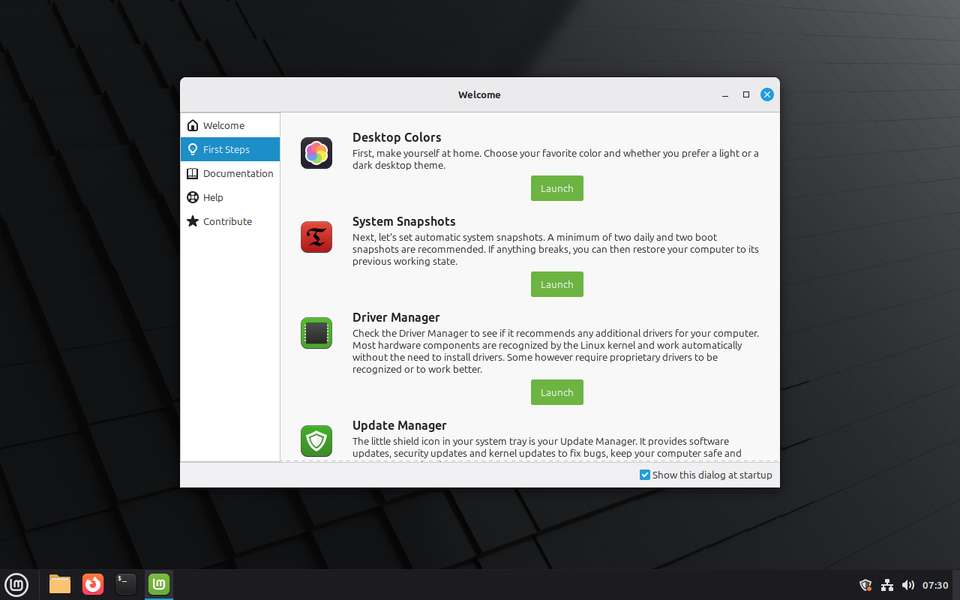
Plug in the drive from step 1 and copy your folders back into your Home folder, which opens from the yellow folder icon on the taskbar. Open a few files to make sure they came through.
Find help
End of 10 lists volunteer groups that help Windows 10 owners move to Linux, and repair cafés hold free community repair events. The Linux Mint forums answer questions about Linux Mint itself.
Sources
- Windows 10 end of support, October 14, 2025: Microsoft Lifecycle.
- Linux Mint 22.3 and its editions: linuxmint.com/download.php.
- Live session, installer screens and Secure Boot fix: the Linux Mint Installation Guide.
- Opening setup from Windows 10: Microsoft, "Enable virtualization on Windows."
- Boot menu and setup keys: support pages from Dell, HP, Lenovo, Acer and ASUS.
- Secure Boot certificates: LWN, "Secure Boot certificate expiration is here," July 1, 2026; Canonical, "Microsoft UEFI CA rotation: what it means for Ubuntu users and vendors."
- Screens: Linux Mint 22.3 Cinnamon, captured in our lab, and the setup screen of our Dell Inspiron 5567, drawn from Tom Adelstein's photos, October 2026.
Text and diagrams: CC BY 4.0, Tom Adelstein. Screenshots of Linux Mint and quotations from the Linux Mint Installation Guide belong to the Linux Mint team, the Dell setup screen belongs to Dell, and the Rufus screen shows Rufus, a program by Akeo Consulting, in a Windows 10 window; all three fall outside that license.